
Canonical tags are an essential tool for SEO, helping to prevent duplicate content issues by telling search engines which version of a page is the “preferred” or “canonical” version. However, incorrect canonical tags can harm your website’s SEO performance, leading to ranking problems, duplicate content penalties, and crawling inefficiencies. Fixing incorrect canonical tags is crucial to ensure your site remains optimized for search engines.
This guide walks you through the steps to identify and fix incorrect canonical tags on your website.
What Are Canonical Tags?
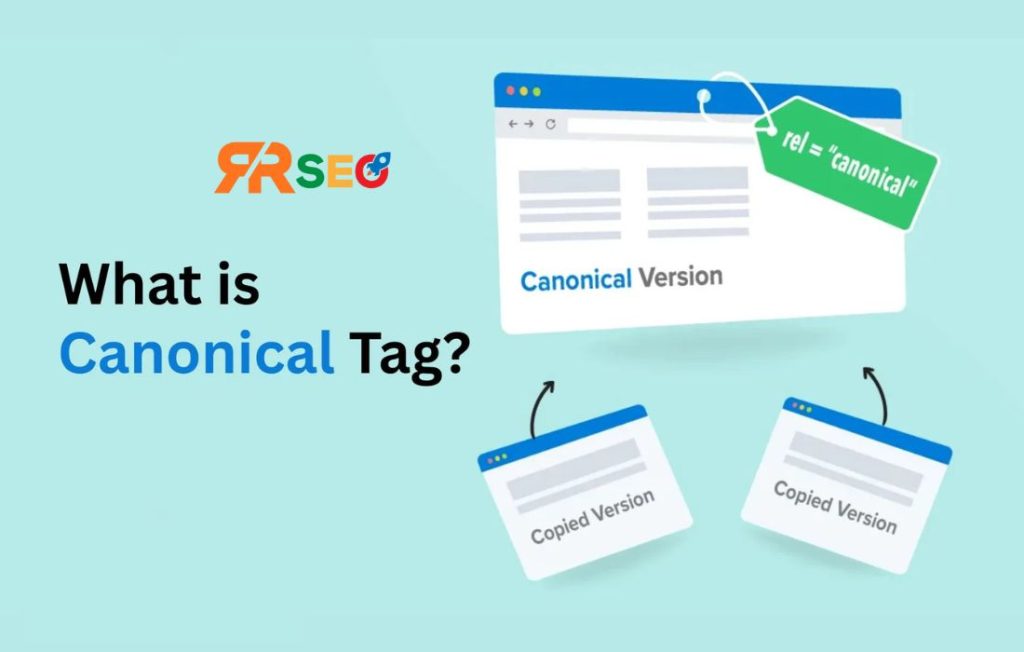
A canonical tag is an HTML element placed in the <head> section of a webpage to indicate to search engines which URL should be considered the authoritative or “canonical” version of the page. This is particularly useful when similar content appears on multiple URLs (for example, product pages with different sorting options or filter combinations), as it helps search engines avoid treating those as duplicate content.
A canonical tag looks like this:
<link rel="canonical" href="https://www.example.com/preferred-url/">
The href attribute points to the preferred URL.
Why Are Canonical Tags Important?
Canonical tags play a crucial role in SEO for the following reasons:
- Prevent Duplicate Content – They tell search engines which version of a page should be indexed, preventing multiple versions of the same content from being ranked separately.
- Improve Crawl Efficiency – By indicating the preferred URL, canonical tags help search engines prioritize crawling the most relevant page, saving crawl budget.
- Consolidate Link Equity – When multiple versions of a page exist, canonical tags ensure that all backlinks are attributed to the correct, preferred page, consolidating link equity.
How to Identify Incorrect Canonical Tags
Before you can fix incorrect canonical tags, you need to identify them. Here are common ways to find issues:
1. Check the HTML Source Code
Examine the <head> section of your webpage. If the canonical tag is incorrect, it may point to the wrong URL or not be implemented at all. To do this:
- Right-click on your webpage and select “View Page Source.”
- Look for the
<link rel="canonical">tag. - Verify that the
hrefattribute points to the correct URL (the one you want indexed by search engines).
2. Use SEO Auditing Tools
There are various tools that can help identify incorrect canonical tags across your website:
- Screaming Frog SEO Spider – This tool can crawl your website and identify issues with canonical tags.
- Google Search Console – The “Coverage” section will alert you to any duplicate content issues, which may be caused by improper canonicalization.
- Ahrefs or SEMrush – These tools allow you to audit canonical tags and check for problems like self-referencing canonical tags or duplicate content.
3. Google Search Queries
Use Google’s “site:” search operator to check how Google indexes your pages. For example:
site:example.com
This can help you identify if multiple versions of the same page are being indexed.
4. Check for Redirect Issues
Ensure that canonical URLs are not redirecting incorrectly. If a page is set to redirect and the canonical points to the same URL, this can cause confusion for search engines.
Common Issues with Canonical Tags
1. Self-Referencing Canonical Tags
A self-referencing canonical tag points to the same URL, which is usually fine. However, if you’re implementing a canonical tag and it’s pointing to an incorrect or non-existent page, that’s an issue.
Fix: Ensure that self-referencing canonical tags point to the correct URL of the page.
2. Multiple Canonical Tags
Having more than one canonical tag on a page can confuse search engines, leading to indexing problems.
Fix: Make sure there’s only one canonical tag per page.
3. Canonical Tags Pointing to Wrong Pages
If the canonical tag is pointing to a page that is not the preferred version, search engines may index the wrong page, resulting in duplicate content penalties.
Fix: Verify that the canonical tag points to the correct URL. If you have a URL with multiple parameters (such as tracking or session IDs), use the canonical tag to point to the clean version of the URL.
4. Canonical Tags for Dynamic URLs
E-commerce sites and sites with dynamic content (like filterable product listings or search result pages) often have issues with canonical tags pointing to dynamic URLs.
Fix: Use clean, static URLs in the canonical tag to prevent search engines from indexing duplicate content across multiple parameters.
5. Missing Canonical Tags
Some pages may be missing canonical tags entirely, which can lead to duplicate content issues if search engines index similar content across different URLs.
Fix: Ensure that all pages have a canonical tag pointing to the correct, preferred version.
How to Fix Incorrect Canonical Tags
1. Update Canonical Tag in the HTML Source
For each page with an incorrect canonical tag:
- Open the page source code.
- Locate the
<link rel="canonical">tag in the<head>section. - Correct the
hrefvalue to point to the preferred URL for that page.
Example of correct canonical tag:
<link rel="canonical" href="https://www.example.com/unique-page/">
2. Set Canonical Tags for Dynamic Pages
For dynamic content such as filtered product listings or search result pages, set the canonical tag to point to the main category or product page rather than the URL with query parameters.
Example:
<link rel="canonical" href="https://www.example.com/product-category/">
3. Use 301 Redirects with Canonical Tags
If there are multiple pages with the same content or URL variants, use 301 redirects to ensure the search engine indexes only one version of the page. Set the canonical tag on the remaining pages to point to the correct version.
4. Implement Rel=“Prev” and Rel=“Next” for Paginated Content
For paginated content (like articles or product listings), use the rel="prev" and rel="next" tags in combination with the canonical tag to tell search engines how to handle pagination.
How to Monitor and Maintain Correct Canonical Tags
Once you’ve fixed the incorrect canonical tags, it’s essential to monitor them regularly:
- Use Google Search Console to monitor crawl errors or duplicate content issues.
- Regularly audit your website with tools like Screaming Frog or Ahrefs to ensure canonical tags are properly implemented.
- Check new content and pages for proper canonicalization as part of your content publishing process.
Conclusion
Fixing incorrect canonical tags is essential for a healthy SEO strategy. Canonical tags ensure that search engines index the correct version of a page, avoiding duplicate content penalties and consolidating link equity. By identifying common canonical issues, fixing incorrect tags, and regularly monitoring your site, you can ensure that your website is optimized for better search engine visibility and performance.
9 thoughts on “How to Fix Incorrect Canonical Tags – A Complete SEO Guide”
Comments are closed.